Create a backup copy of QuickBooks Desktop

Make a backup company file in QuickBooks Desktop so you can send it to us or restore it later.

A backup copy is a single .QBB file containing your whole company file. This is what to send us when we ask for your QuickBooks Desktop data.

  1. In QuickBooks Desktop, open the File menu and choose Back Up Company, then Create Local Backup
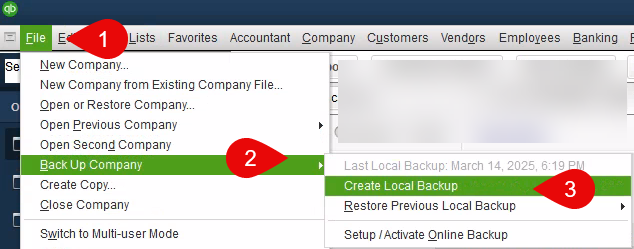
    QuickBooks Desktop File menu with Back Up Company and Create Local Backup highlighted

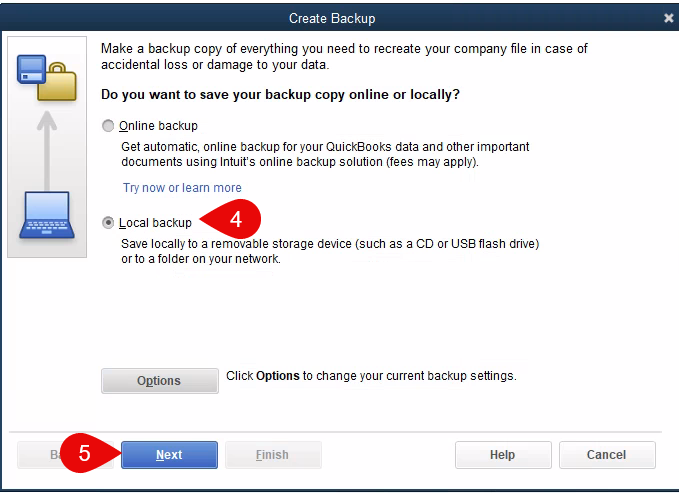
  2. Select Local backup and click Next

    QuickBooks Create Backup window with the Local backup option selected

  3. Choose where to save the file and confirm the backup options, then click OK
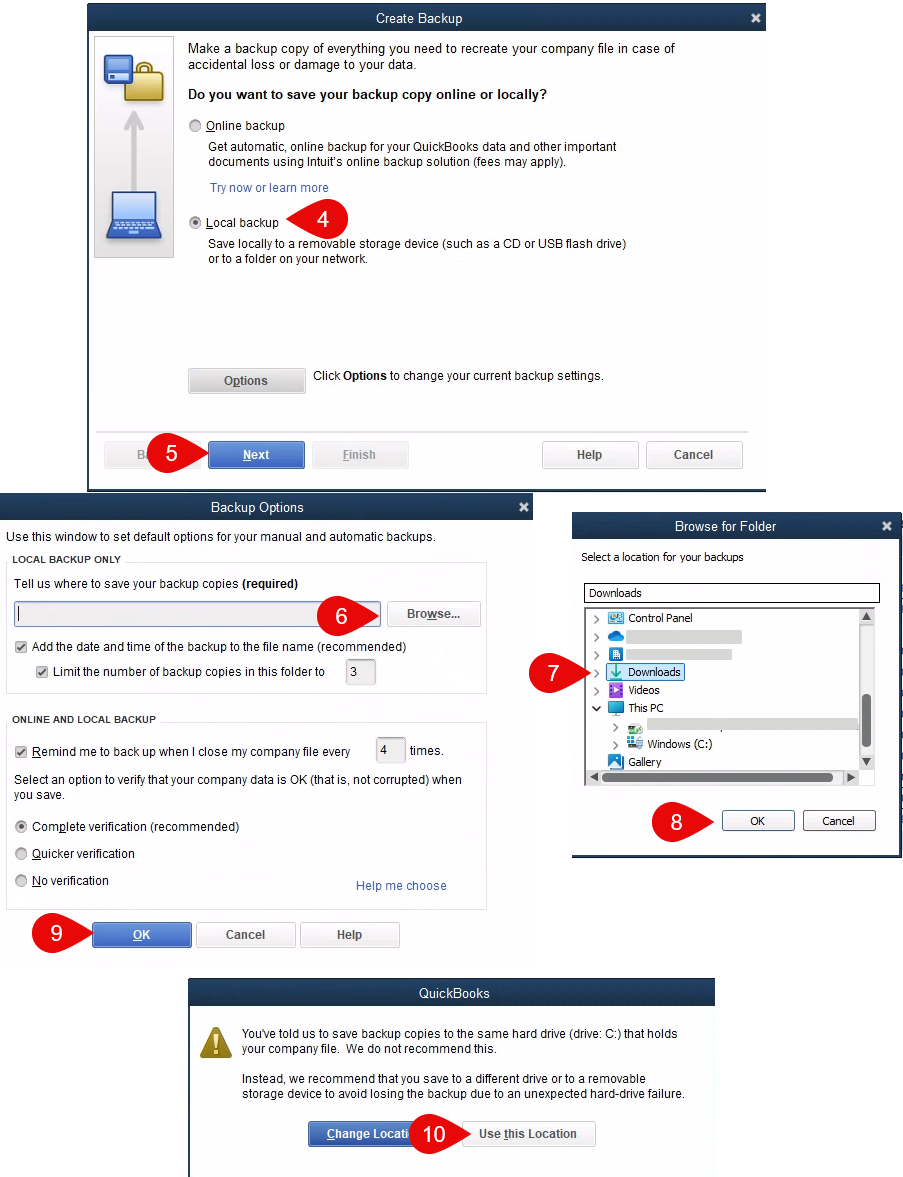
    QuickBooks backup options window showing the save location and backup settings

  4. Choose Save it now and click Next to create the file
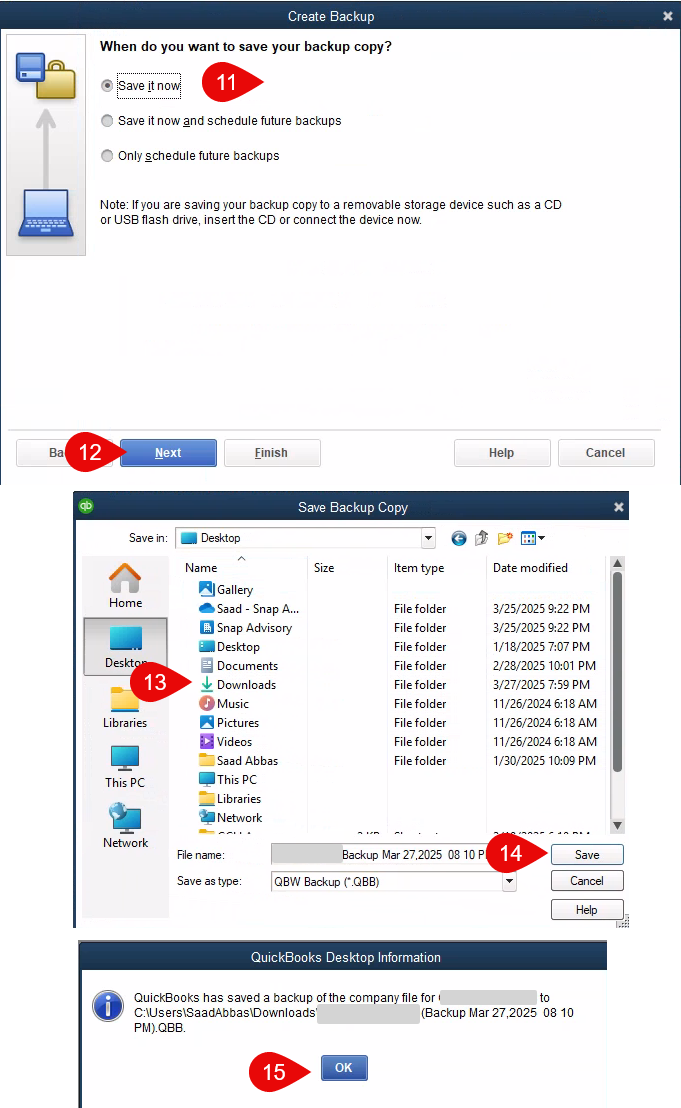
    QuickBooks backup scheduling window with Save it now selected

  5. QuickBooks confirms when the backup is complete. Upload the .QBB file through the client portal (Opens in a new tab)

Send backup files through the client portal, not email. The file contains your full accounting records.

Need help? Send a message through the client portal (Opens in a new tab) or email info@snapadvisory.com.

← All resources

These choices do not subscribe you to email or text messages. Forms and scheduling tools load separately when you request them. Read our Privacy Policy.